What you can do in Skills and Certifications:
- Build a certification library that reflects your organization — you decide the categories and the specific certification types within them.
- Record certifications on any employee profile, including certification numbers, issuing authorities, award dates, expiration dates, and proof documents.
- See live status at a glance with badges that show whether a certification is Active, Expiring Soon, Expired, or Not Assigned.
- Get automatic email alerts before certifications expire and again when they lapse.
- Link credentials to positions so you know which certifications are required (or nice to have) for each role.
- Run an organization-wide report to see credential status across every location and certification type.
Skills management now lives here too, in the same tab as certifications, so everything credential-related is in one spot.
Before you start
You'll need admin access to Team Member Settings to build your certification library. Once it's set up, managers can record certifications on employee profiles without needing admin permissions.
A few things worth deciding up front:
- What categories make sense for your business? Safety, HVAC, Licenses, and Compliance are common starting points, but your setup should reflect how your team actually thinks about credentials.
- Who needs to know when something's expiring? The employee always gets notified automatically, but you'll probably want managers or compliance folks in the loop too.
- Which positions have specific credential requirements? Having a list handy will make step 3 below much faster.
Step 1: Build your certification library
This is where you tell Woven what certifications your organization cares about.
- Go to Team Member Settings → Skills & Certifications.
- Create a category (for example, "Safety" or "HVAC Licenses").
- Inside that category, add the specific certification types you want to track (like "OSHA 10" under Safety, or "EPA 608 Universal" under HVAC Licenses).
- Repeat for as many categories as you need.
There's no limit on categories or types, so don't worry about getting it perfect the first time. You can always add more later as new requirements come up.
Step 2: Define credentials for each position
Once your library exists, you can tell Woven which certifications matter for which roles.
- Open any Position in your settings.
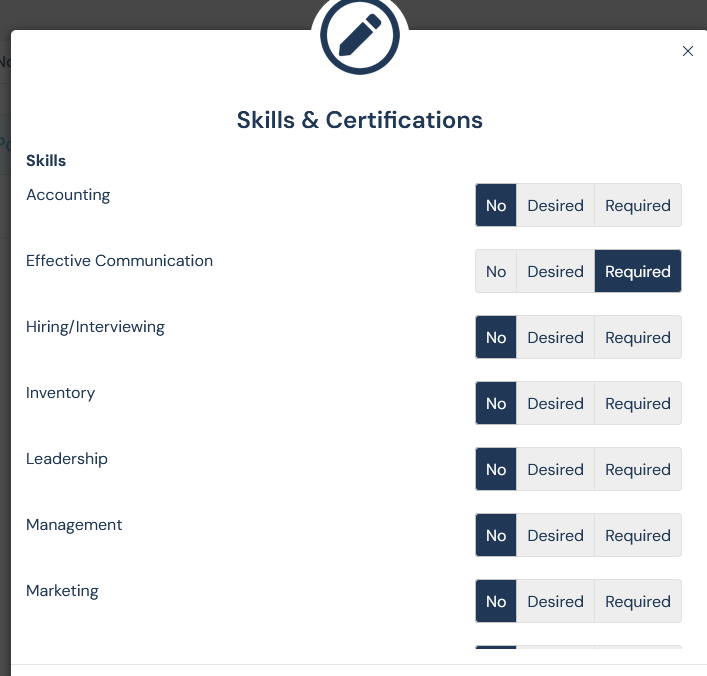
- Mark certifications as Required or Desired for that role.
- Save your changes.
Now, when a manager opens an employee's profile, Woven will show suggestions based on that person's position — making it easy to fill in missing credentials during onboarding or performance reviews.
 Step 3: Record certifications on employee profiles
This is the part your managers will use most often.
- Open the employee's profile.
- Go to the Certs & Skills tab.
- Click to add a certification and fill in:
- The certification type (pulled from your library)
- Certification number
- Issuing authority
- Date awarded
- Expiration date
- A proof document (PDF or image)
- Save.
Once it's saved, you'll see a status badge next to the certification. That badge updates automatically as the expiration date approaches, so you never have to guess where things stand.
Understanding the status badges
Every certification shows one of four statuses:
- Active — current and not close to expiring.
- Expiring Soon — the expiration date is approaching. Time to start the renewal conversation.
- Expired — the certification has lapsed. These needs immediate attention.
- Not Assigned — the position calls for this credential, but the employee doesn't have it on file yet.
At a glance, you can scan a profile and instantly see what's handled and what needs work.
Step 4: Set up expiration alerts
You don't want to be the person who finds out a certification expired three months ago. Woven sends automatic email alerts before a certification expires and again when it lapses.
The employee always receives these alerts — no configuration needed. But you'll probably want others in the loop too, like direct managers, an operations lead, or a compliance coordinator.
To add more recipients:
- Go to Account Settings → Notifications.
- Find the certification alert settings.
- Add the email addresses (or roles) that should receive alerts.
That's it. From here on out, those folks will get a heads-up before anything lapses.
Step 5: Run the Team Member Certifications report
When you need the big picture — say, before an audit or a quarterly review — the report pulls it all together.
- Go to your reports section and open Team Member Certifications.
- Filter by location and/or certification type to narrow things down.
- Export if you need to share it outside of Woven.
Some useful ways people use this report:
- Confirming every employee in a location has their required safety certifications before a site visit.
- Spotting credentials coming due in the next 30, 60, or 90 days so you can get ahead of renewals.
- Checking whether a specific certification (like a new compliance requirement) has rolled out across the team.
A note about Skills
Heads up: skills management moved. It used to live in Account Settings, but it's now in the Skills & Certifications tab in Team Member Settings — right next to certifications. Everything works the same; it's just in a more logical place now.
Frequently asked questions
Can I track certifications that don't expire? Yes. Just leave the expiration date blank, and the certification will stay Active indefinitely.
What file types can I upload as proof? PDFs and common image formats (like JPG and PNG) both work.
Who can see an employee's certifications? Anyone with permission to view that employee's profile can see their Certs & Skills tab, including any proof documents you've uploaded.
Can employees add their own certifications? Certifications are recorded by managers or admins — this keeps credential data verified and consistent. Employees will still receive notifications about their own certifications automatically.
What if we use a certification that isn't in the library yet? Just add it. Go to Team Member Settings → Skills & Certifications and create the type under the appropriate category. Once it's there, you can record it on any profile.
Comments
0 comments
Article is closed for comments.